Daylight potential analysis identifies parts of the facade with little access to daylight with the help of Vertical Sky Component score.
Linking to a Scenario
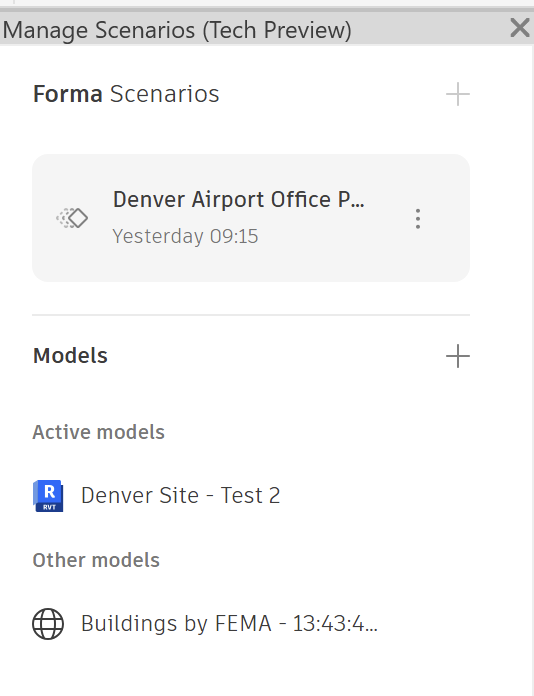
You need to link your project to a scenario to use Forma Analyses in Revit.
- Check to see if your project is already linked to a scenario:
- Open Collaborate > Manage Models > Manage Scenarios.
- The Manage Scenarios panel displays the scenario your project is linked to.
- If the Manage Scenarios panel reports that you need to create a new scenario, follow these steps: Using Forma Analysis Tools in Revit
Displaying a Microclimate Analysis
- Open Analyze > Forma Analyses > Analyses & History.
- The Analyses & History panel displays the list of Forma Analyses available and lists results from prior analyses.
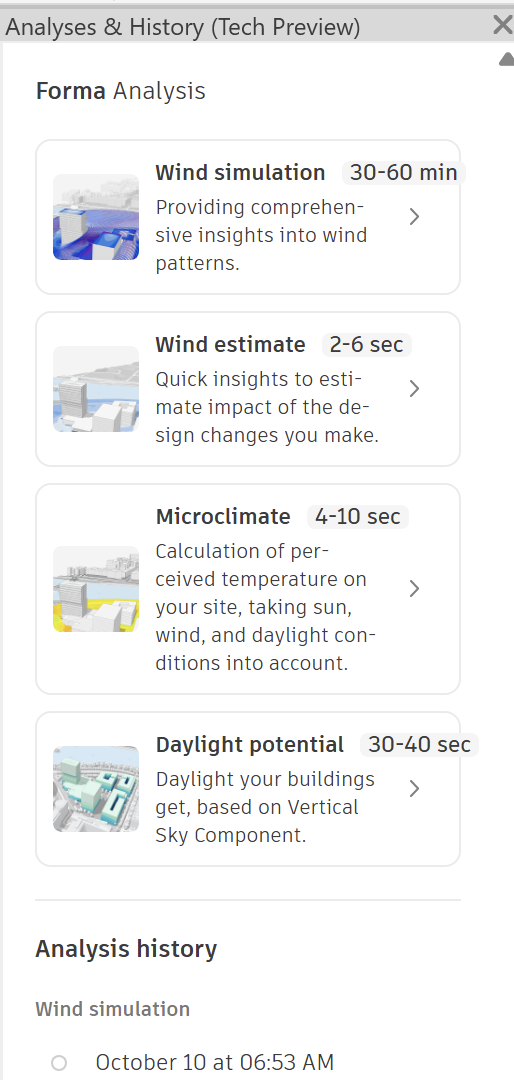
- Click Daylight Potential to display a Forma Daylight Potential Analysis.
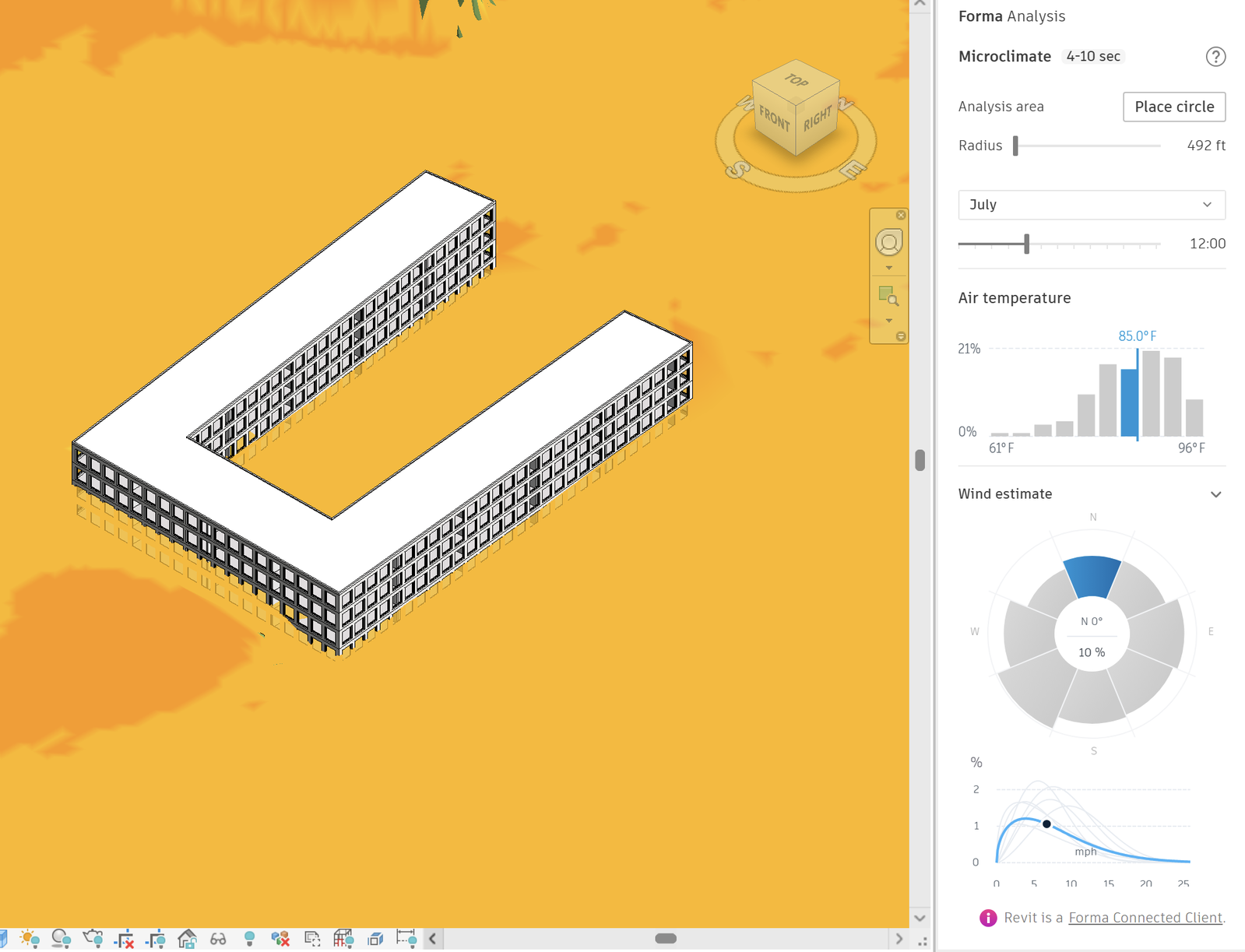
- The Daylight Potential panel appears, where you can:
- Place the analysis circle
- Choose the date
- Select the month and time of day you want to analyze — for example, a hot month around lunchtime (when office workers have their lunch break).
- Adjust the air temperature or wind direction (if desired)
- Adjust the dry bulb temperature to test typical or more extreme heat scenarios.
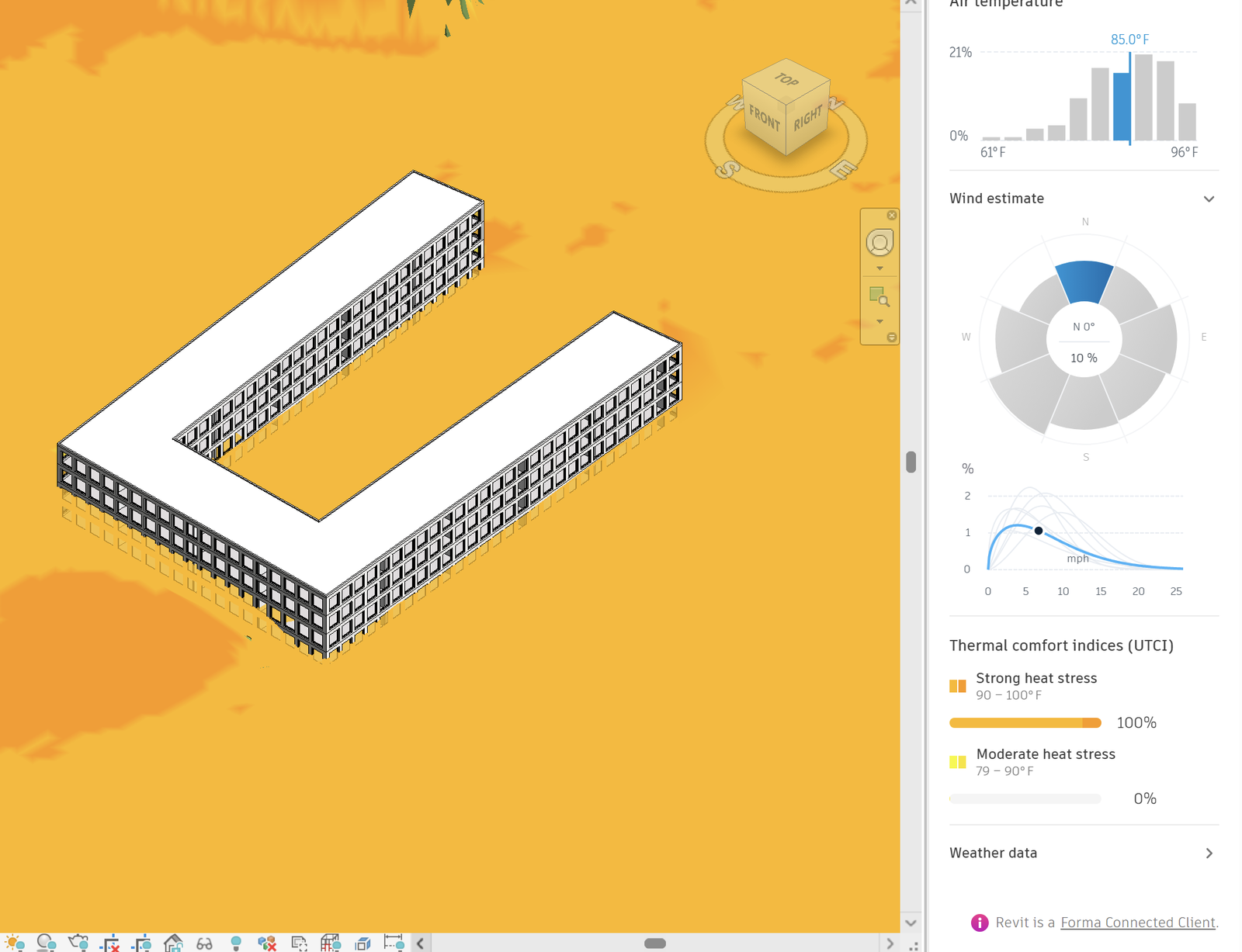
- Select the relevant wind condition using the wind rose and wind speed diagram.
- Scroll down in the Microclimate panel to display the Thermal Comfort indices and the detailed % distributions.
Additional Resources
To learn more about the features of Daylight Potential analysis:
- Using Daylight Potential Analysis in Forma Site Design Daylight Potential Analysis
- Introduction to Daylight Potential Analysis