Add spaces to your MEP model to enable accurate energy modeling and HVAC load calculations.
Workflow
Set the Architectural Model to Provide Room-Bounding Surfaces
- Verify that the linked Architectural model provides room-bounding surfaces for the MEP model.
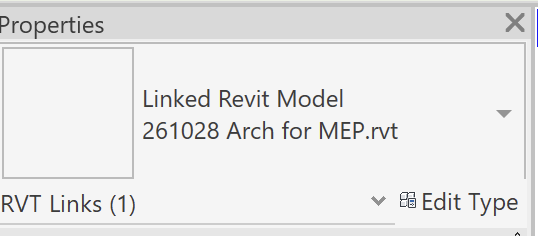
- Select the linked Architectural model.
- All of the linked architectural elements will be highlighted in blue.
- Click the Edit Type button in the Properties palette.
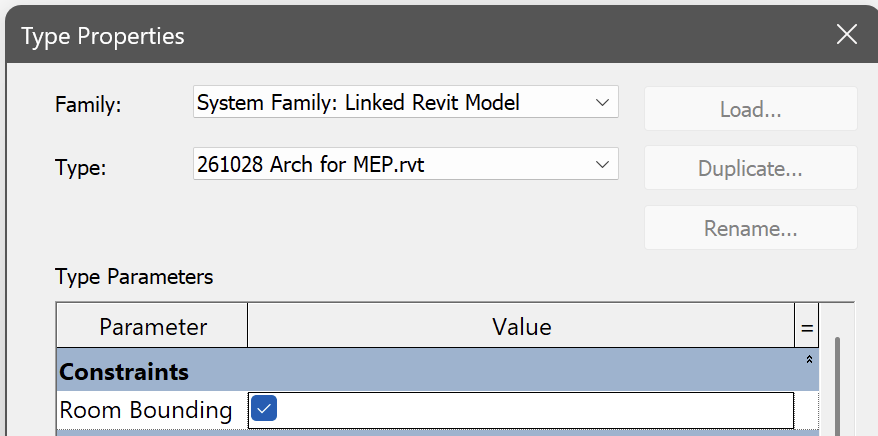
- Verify that the Room Bounding property is turned on.
Set the Space Limits to Touch the Surfaces Providing Thermal Enclosure
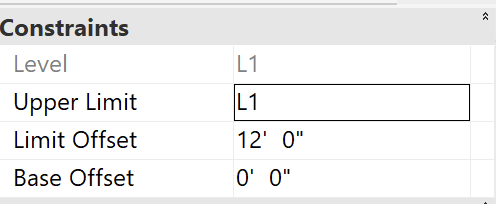
- Verify that each space’s Constraints are set so the space touches the surfaces that provide thermal enclosure.
- Set the Level and Base Offset to touch the floor.
- Set the Upper Limit and Limit Offset to touch the ceiling or roof above.
Next Step
Specifying Internal Loads using SpacesAI Prompts
‣
Copying Spaces from a Linked Model
‣