- Open the Revit 2027 application.
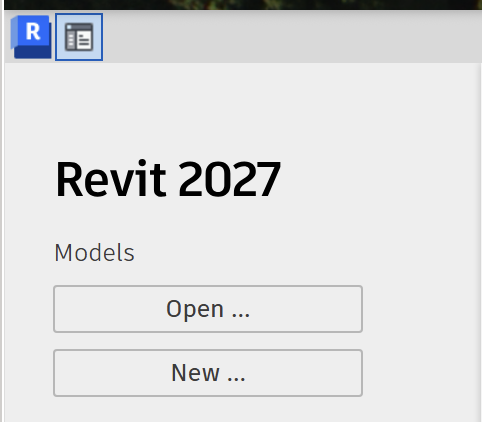
- Open the Revit home page, then click the Open... button in the Models section of the navigation bar.
- Navigate to the folder where you've downloaded the testing files on your computer, then open this folder: Global AEC Install Testing 2026\Test 3A - Use Autodesk Asst to Modify this Model.
- Open Autodesk Assistant and use it to query and modify the model.
- Use Autodesk Assistant to list the window elements in the model.
- Copy Autodesk Assistant’s response, then paste it into a new document named Test 12 Results.
- Use Autodesk Assistant to create a Door Schedule listing all the doors.
- Capture a screenshot of the Door Schedule view, then paste it into the Test 12 Results document.
- Use Autodesk Assistant to modify the interior door types.
- When prompted, confirm the proposed change.
- Copy Autodesk Assistant’s response into the Test 12 Results document.
- Send the Test 12 Results document to the course assistant.

List the window elements
Create a door schedule grouped by level
Change all the doors of type Single-Glass 1 36" x 84" to Single-Flush 36" x 80”